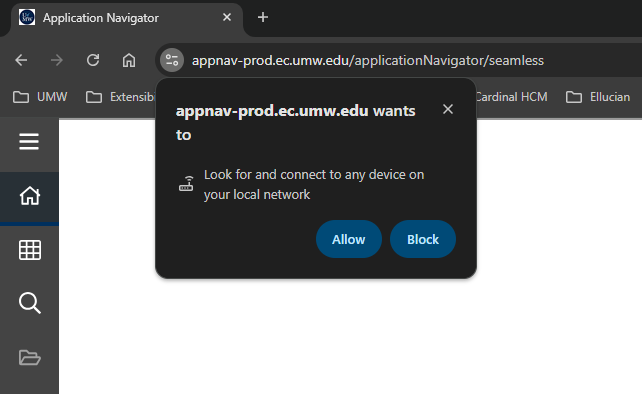
What is Local Network Access and Why Am I Seeing This Prompt?
When you log into Banner 9 Admin and open your first page (eg: SPAIDEN), you may see a permission prompt from your browser asking to access devices on your local network. You should click “Allow”.
This is a new security feature called Local Network Access (LNA). Google Chrome is the first browser to implement this feature, but other browsers are expected to do the same in the near future.
Why Does This Security Feature Exist?
The Local Network Access Specification was created to protect users from malicious websites that might try to scan or attack devices on your home or work network without your knowledge. Think of it like your browser asking “Hey, this website wants to talk to things on your network—is that okay with you?”
Before this feature existed, any website could potentially try to communicate with printers, routers, internal servers, or other devices on your local network without asking. Now, websites must request your permission first.
Why Banner 9 Admin Needs This Access
Banner needs to communicate with other UMW systems on the local network in order to function properly. When you click Allow, you’re telling Chrome that Banner is allowed to access those supporting systems through your browser.
This prompt should only appear once, with the exception of loading Banner within an Incognito window/tab which will not maintain your selection between sessions.
I Accidentally Clicked “Block”!
If you inadvertently click Block when the LNA prompt appears, you may see a screen like this:

You can correct the setting by clicking the slider bar icon next to the URL of the page and switching Local Network access ‘on’:

Be sure to reload the page after updating this setting!
When Should You Block?
While it’s appropriate to allow access for trusted University systems like Banner, you should think carefully before clicking “Allow” on other websites, especially:
⚠️Websites you don’t recognize or trust
⚠️Random websites you’re just browsing
⚠️Suspicious links you received via email
When in doubt, ask yourself: “Does this website have a legitimate reason to access my local network?” If the answer isn’t clearly yes, click Block or Deny.
Problems?
If you are encountering issues despite the Local Network Access setting turned ‘on’, please contact the Helpdesk at (540) 654-2255.